InmoPro
Complete guide

Learn to use InmoPro in 10 minutes

A walkthrough of every feature with real screenshots and clear steps. If you make it to the end, you know how to use everything.

~10 min read 10 chapters
01 · SETUP

Create your account in under 1 minute

InmoPro uses Google or Apple so you don't have to remember another password. Your account is ready instantly.
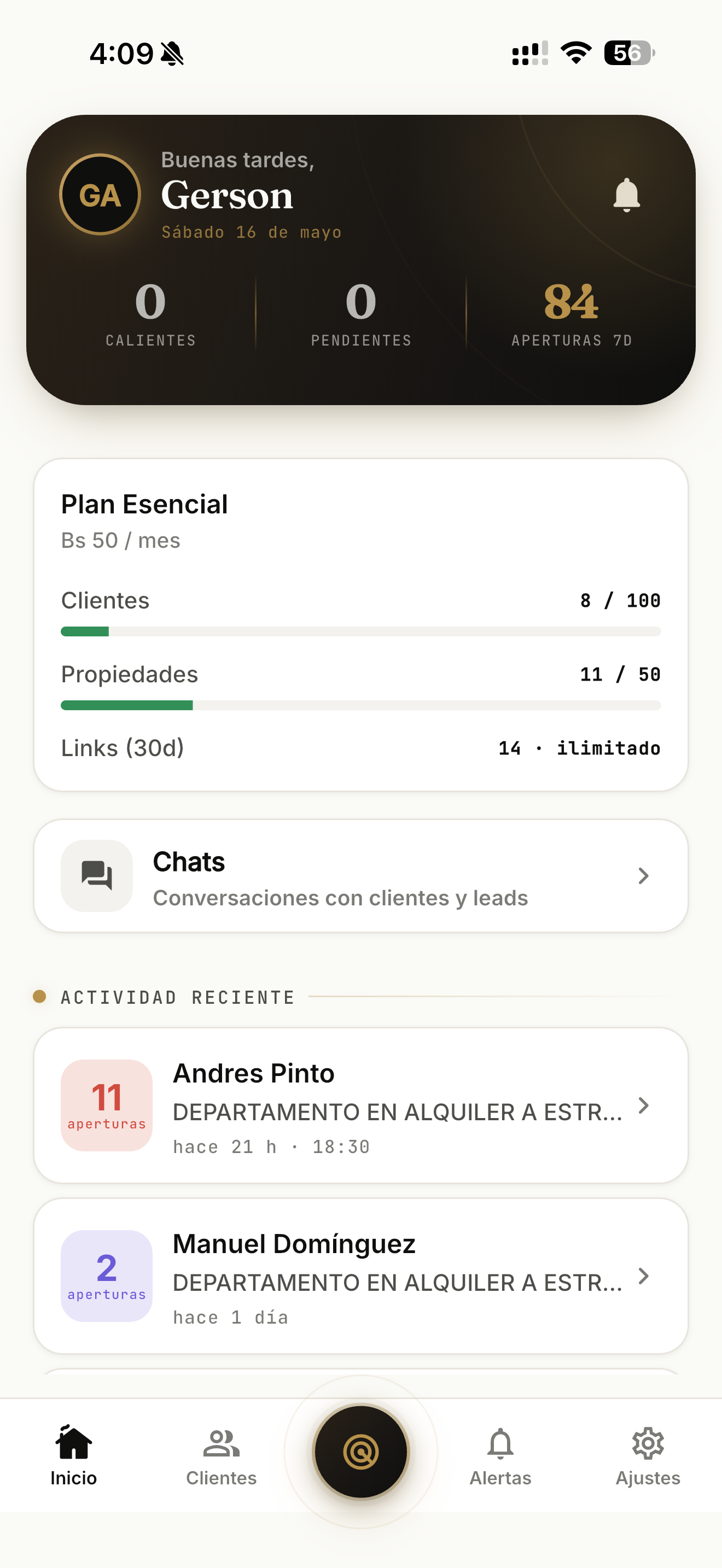
InmoPro home screen
  1. 1

    Download the app

    From App Store or Google Play. Under 50 MB.

  2. 2

    Sign in with Google or Apple

    One tap and you're in. No long forms or verification emails.

  3. 3

    Activate your Essential plan via WhatsApp

    While we integrate in-app payments, you message +591 77793187 and we activate in minutes.
02 · CLIENTS

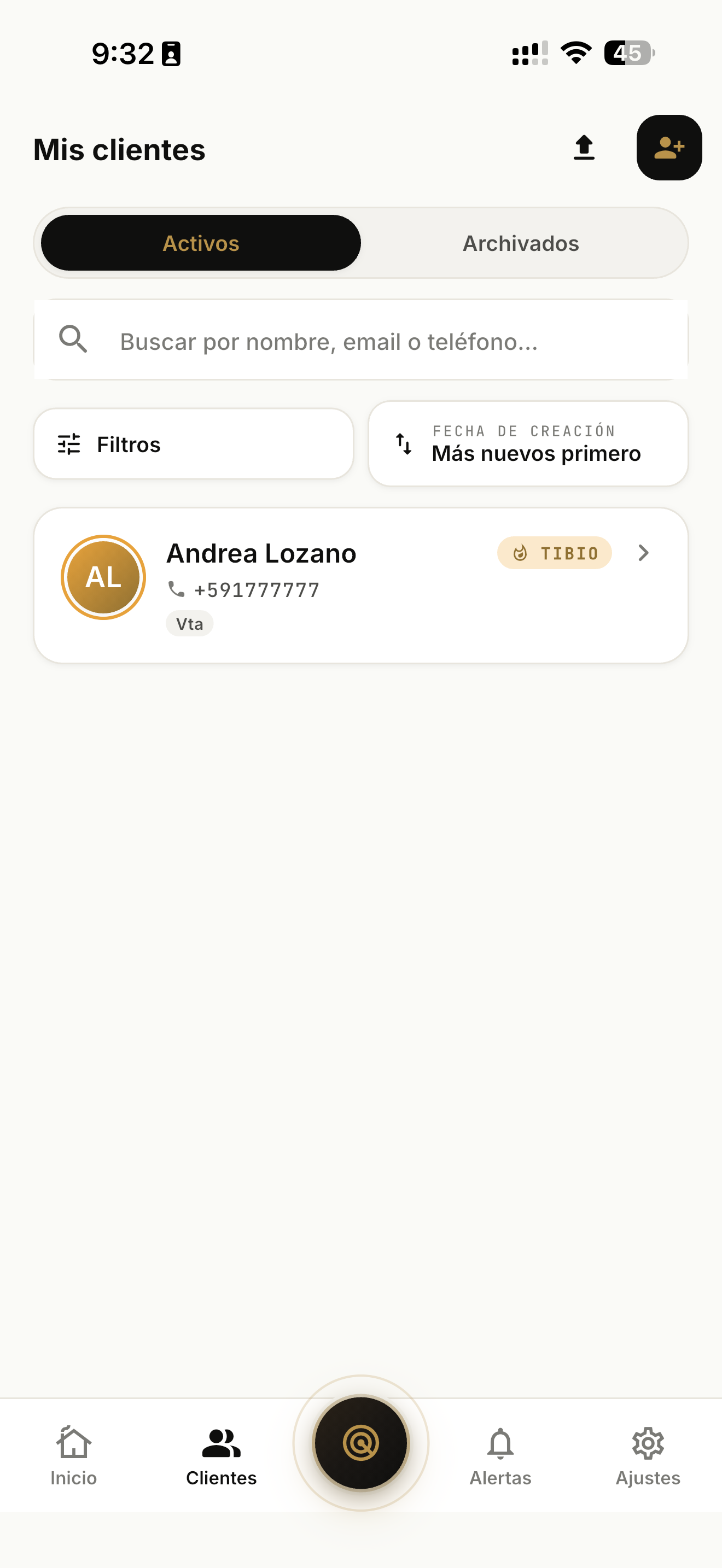
Add your first 100 clients

Two ways: bulk import from your phone contacts (up to 500 at a time) or add one by one with detailed preferences.

Clients list in InmoPro
  1. 1

    Go to the Clients tab

    Tap the people icon in the bottom bar.

  2. 2

    Tap "+" or "Import"

    If you choose import, InmoPro asks for contact access and shows your address book. Pick the ones to add.

  3. 3

    Set each client's preferences

    Zone, budget in BOB or USD, type, bedrooms, bathrooms, parking, extras (terrace, security, etc.).

    The more detailed the preferences, the more accurate the automatic matching.
  4. 4

    Assign interest level

    Hot (HOT), warm (WARM) or cold (COLD). InmoPro uses this to rank your daily view.

03 · PROPERTIES

Load properties in seconds — 3 ways

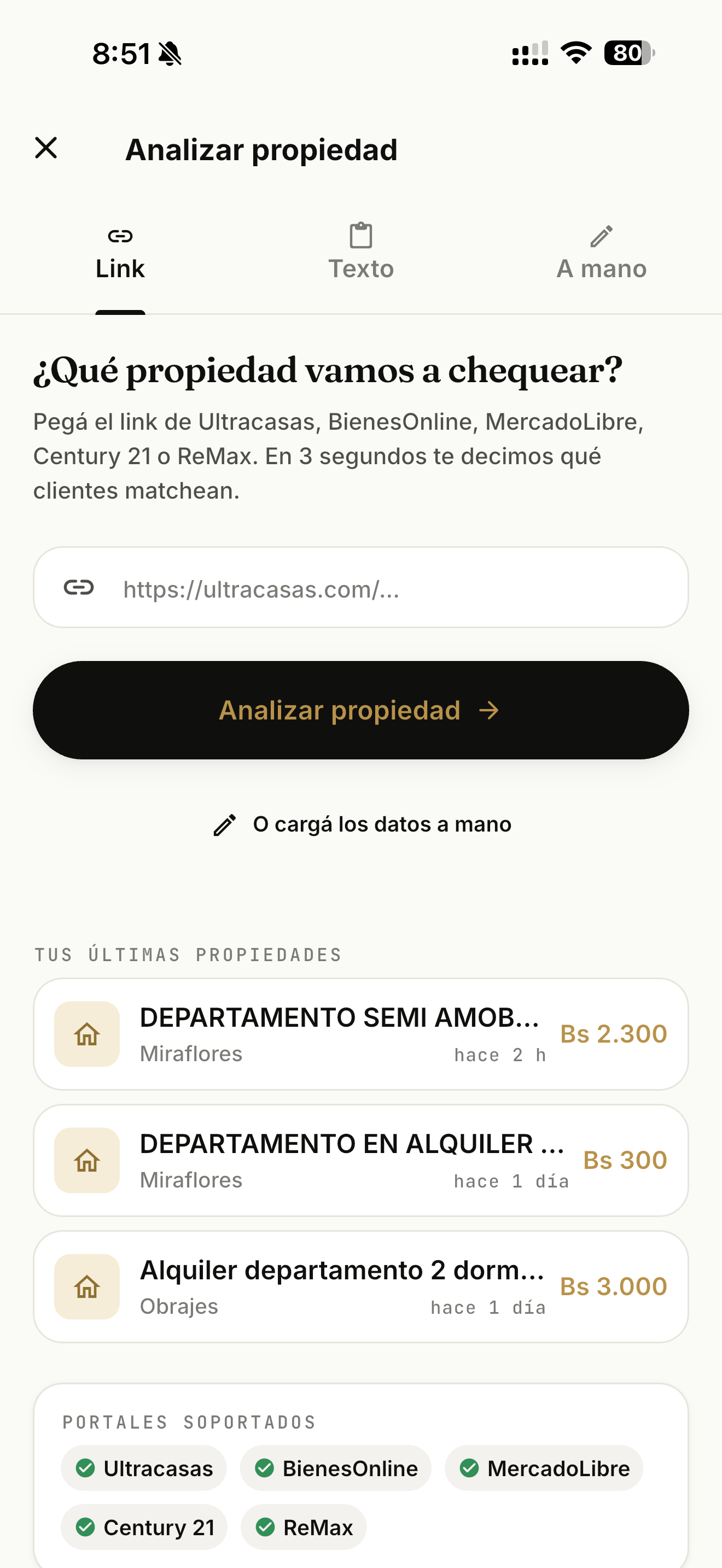
The "Analyze property" screen gives you three modes to add a property: Link, pasted Text, or Manual. Pick the tab based on what you have at hand.

InmoPro Analyze property screen with Link, Text and Manual tabs
  1. 1

    Link mode — paste the listing URL

    We support 5 portals: Ultracasas, BienesOnline, MercadoLibre, Century 21 and ReMax. Paste the link and in 3 seconds InmoPro extracts photos, price, rooms and tells you which clients match.

  2. 2

    Text mode — paste a marketplace description

    Useful when someone sent you the property via WhatsApp or Facebook Marketplace and there's no URL. Paste the ad text and InmoPro parses the data.

  3. 3

    Manual mode — enter the data yourself

    When you have neither link nor text (a property you heard about through referral). You enter zone, price, rooms and photos manually.

  4. 4

    Tap "Analyze property"

    InmoPro saves the property in your catalog and instantly shows which clients in your portfolio match it.

    On the same screen you see "Your latest properties" for quick access to recents, and at the bottom the "Supported portals" as reference.
05 · MATCHING

Automatic matches, both ways

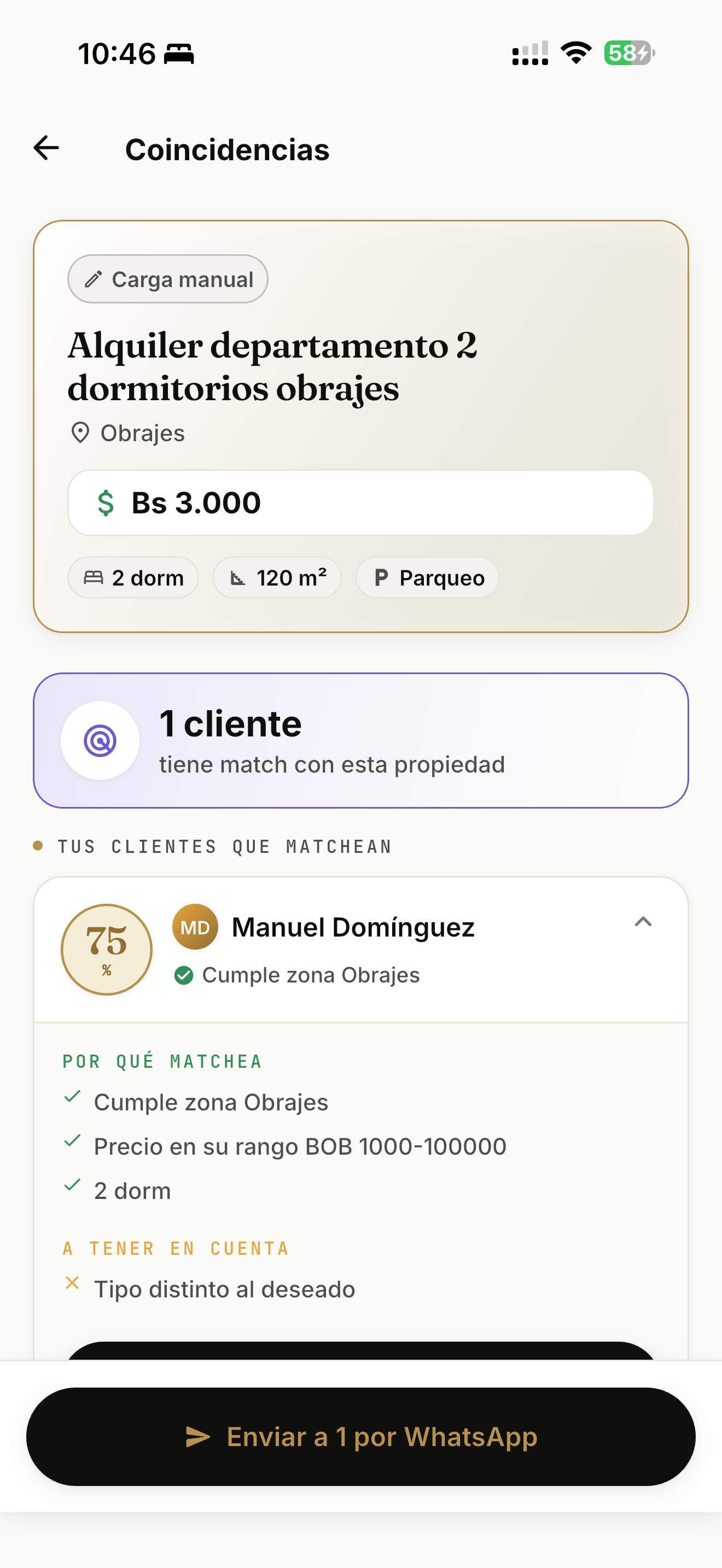
The core of InmoPro. New client → matching properties. New property → interested clients. With explanation of WHY.

Matches between client and property
  1. 1

    Go to the Matching tab

    Or directly from a property or client, tap "See matches".

  2. 2

    Review each match with its reason

    InmoPro tells you why: "meets Achumani zone", "price in range", "has desired bedrooms", etc.

  3. 3

    Send the match directly via WhatsApp

    One tap and it's sent with the trackable link.

    If a property changes price and now matches new clients, InmoPro recalculates and alerts you.
06 · CHAT

Unified inbox for all your leads

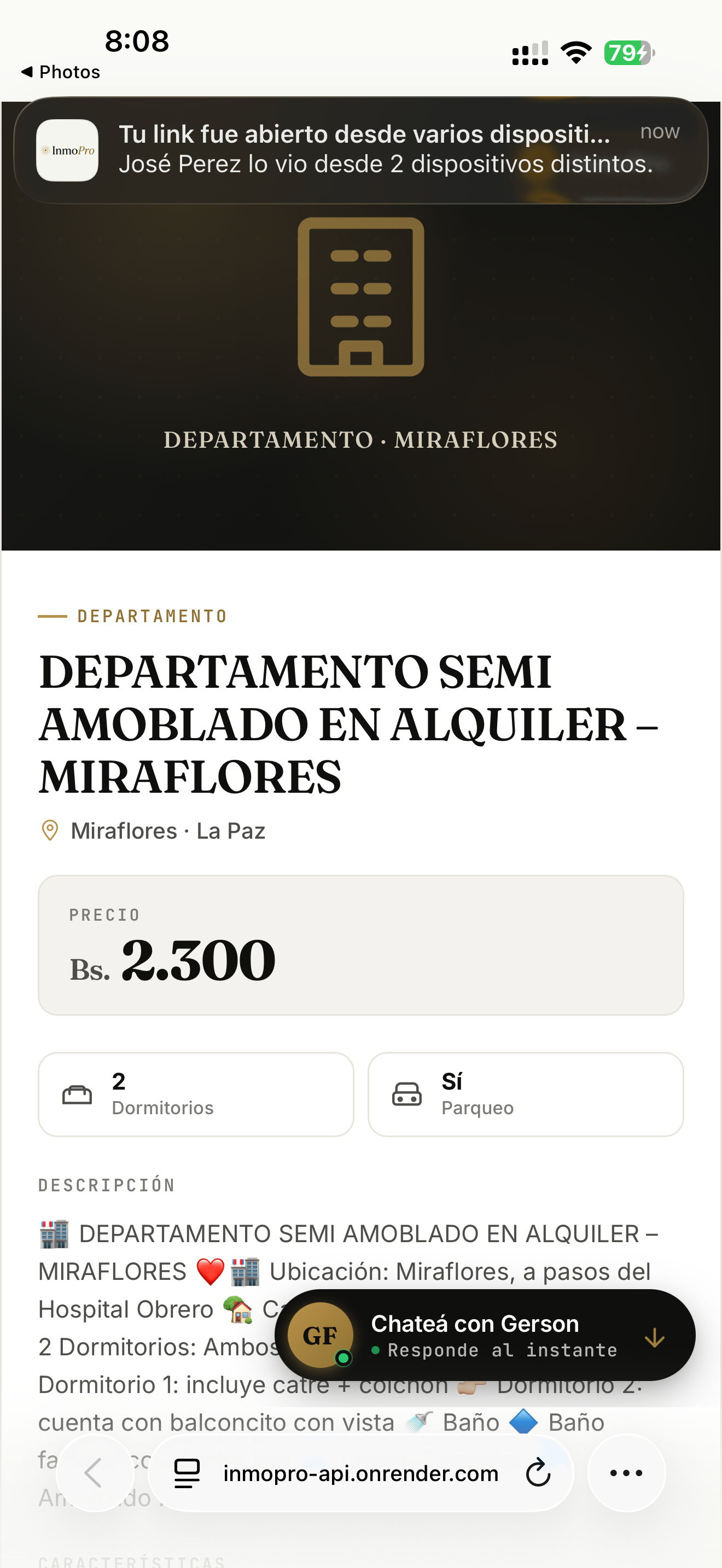
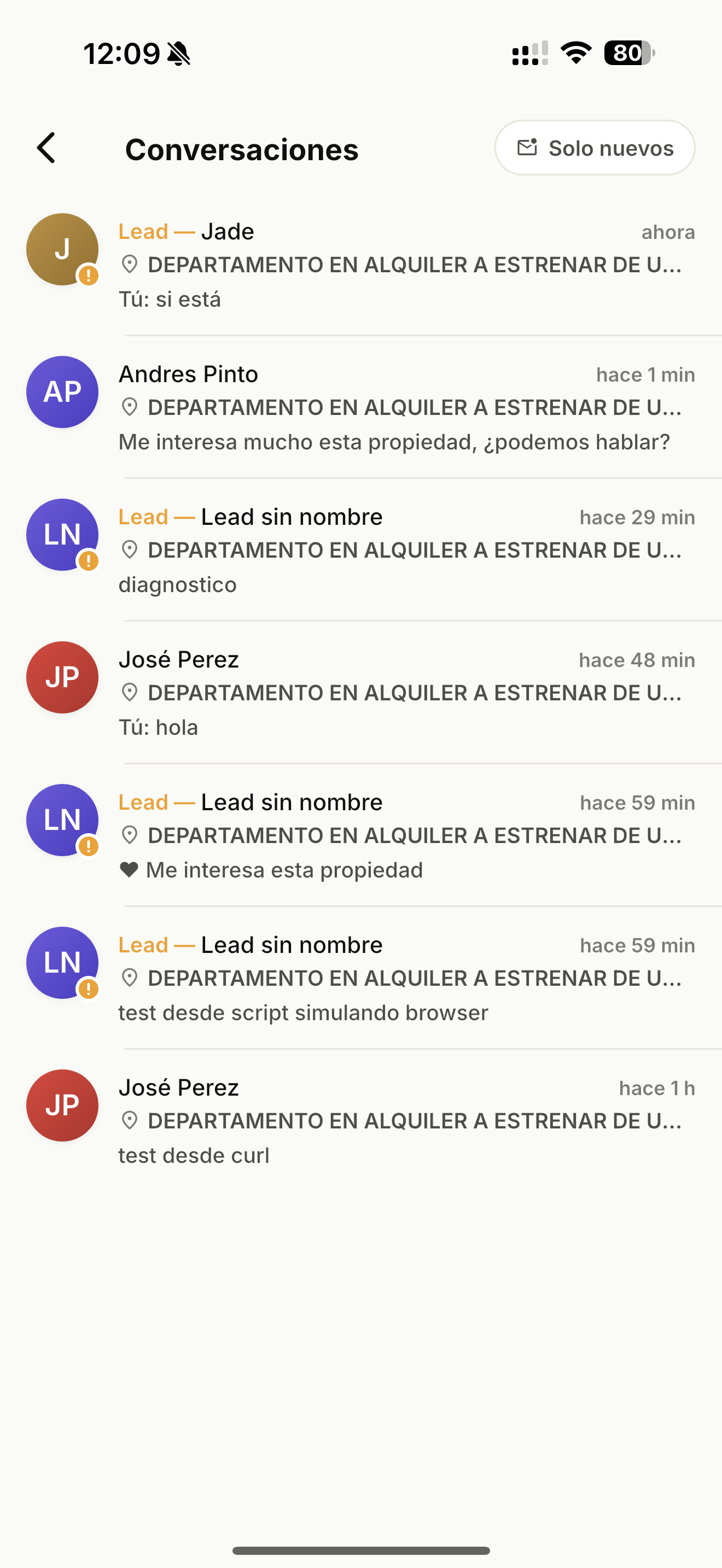
Every link you send includes a mini-chat. Leads write from there, you reply from the app — no mixing conversations in WhatsApp.

Conversations inbox with leads
  1. 1

    Go to the Conversations tab

    Or to the chat icon in home if there are new messages.

  2. 2

    Tap a conversation

    See all messages from the lead with the property they came from. Send text, photos, audio or PDF (up to 5 attachments).

  3. 3

    Use quick actions

    The lead can tap "Interested", "Send photos", "Schedule visit" or "Ask price" — you get a push with context.

  4. 4

    Capture name and phone softly

    As the lead chats, InmoPro softly captures their name and phone (when given) to add as client.

07 · REMINDERS

Reminders so you never miss a follow-up

Schedule calls, visits or follow-ups per client. The push notification reaches you even with the app closed, exactly on the day and time you choose.

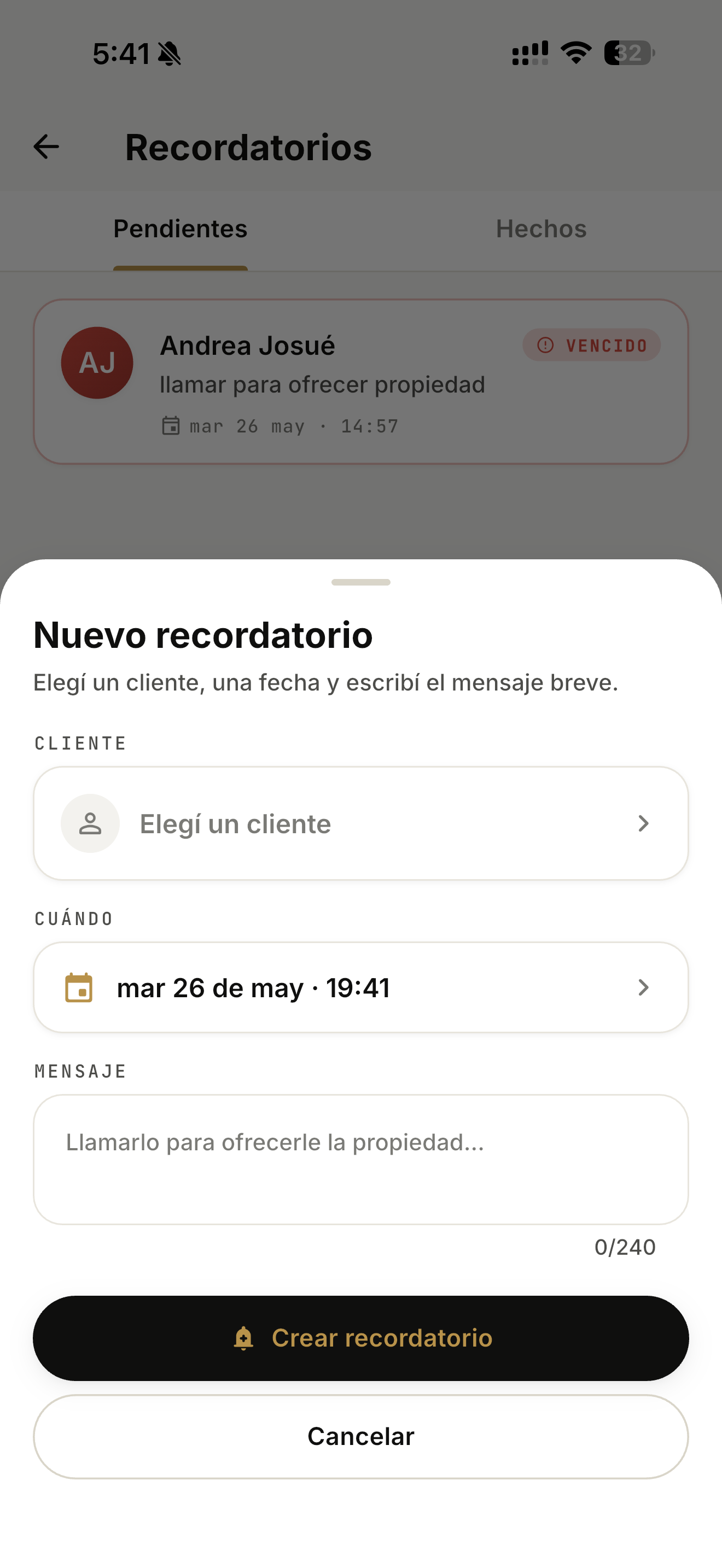
New reminder modal in InmoPro
  1. 1

    Open Settings from the bottom bar

    It's the gear icon on the far right. Look for the "Tools" section.

  2. 2

    Enter Reminders

    Inside Tools, tap "Reminders — Calls, visits and per-client follow-ups". You'll see two tabs: Pending and Done.

  3. 3

    Tap the "New" button (bottom right)

    A modal opens with three fields: Client, When and Message (240 chars). Pick the client from your portfolio, the date and time, and write the brief reminder.

  4. 4

    Confirm with "Create reminder"

    The reminder goes to Pending. When its time comes you get a push even if the app is closed. If the date passes without marking it done, it gets an "OVERDUE" badge.

    HOT clients always appear on top in your home — and if you don't contact a hot one, InmoPro reminds you automatically after 2 hours.
08 · VALUATOR (BETA)

Three suggested prices based on the market

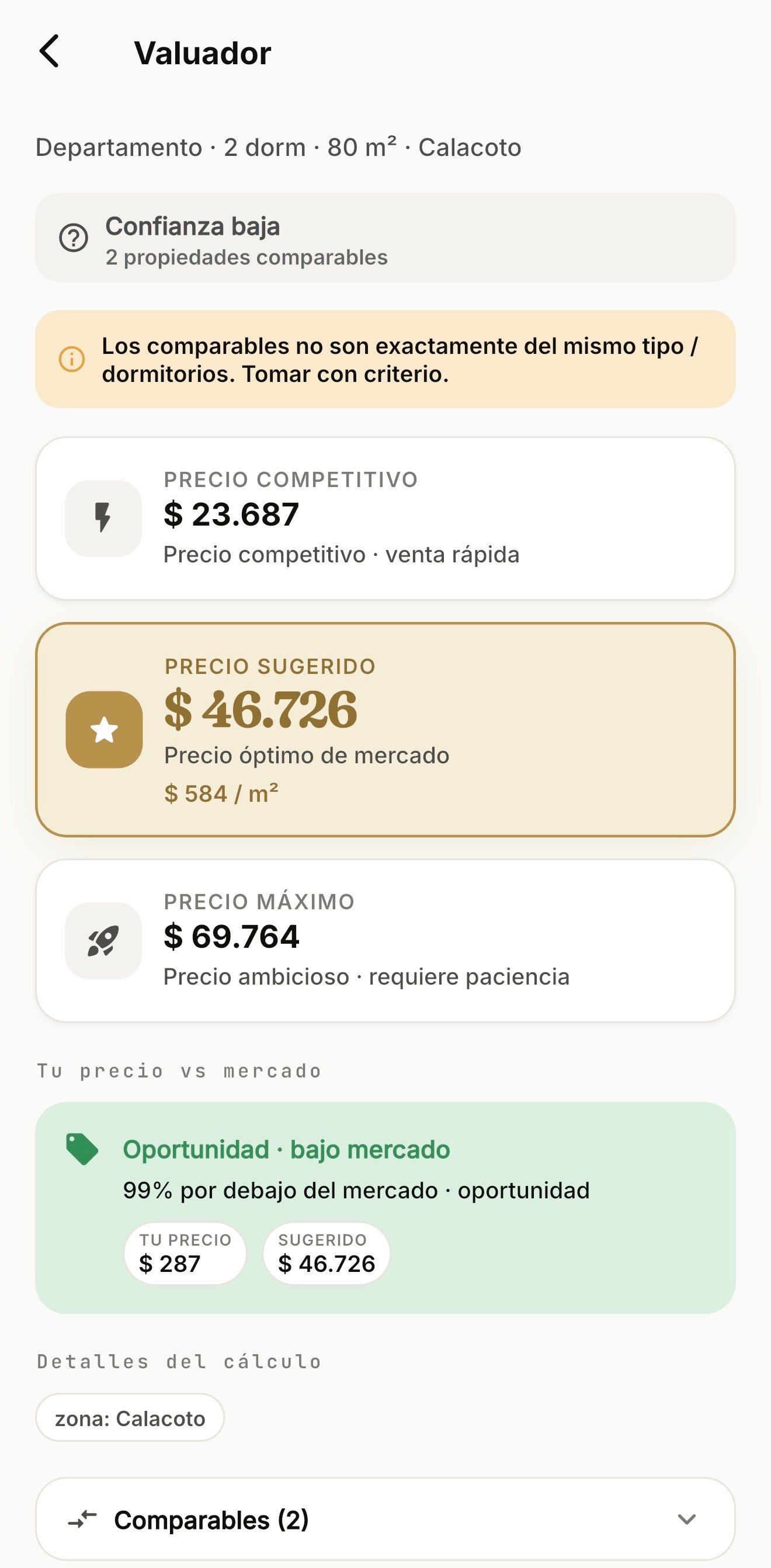
The Valuator analyzes your inventory and comparable properties in the area to return three suggested prices: competitive (fast sale), optimal (suggested), and maximum (requires patience). Useful to pre-qualify before talking to owners.

Valuator screen showing 3 suggested prices for an apartment
  1. 1

    Go to Settings → Tools → Valuator

    Right below Reminders, with a "BETA" badge.

  2. 2

    Enter location, type and features

    Example: "Apartment · 2 bed · 80 m² · Calacoto". InmoPro searches comparables in your inventory + zone.

  3. 3

    Get three suggested prices

    · Competitive (fast sale) · Suggested (market optimal) · Maximum (ambitious, requires patience) Includes price per m² so you can justify it to the owner.

  4. 4

    Compare your price vs market

    If you enter your current price, it shows whether you're below (opportunity), in line, or above market. Ideal for new captations.

    The Valuator shows confidence level based on number and quality of comparables. If it says "Low confidence" with 2 comps, take the numbers with judgment.
09 · REFERRALS

Earn points by inviting colleagues

Every time a colleague activates their plan, both of you receive points. 1 point = $1 off your next renewal. No cap: the more you invite, the more discount you accumulate.

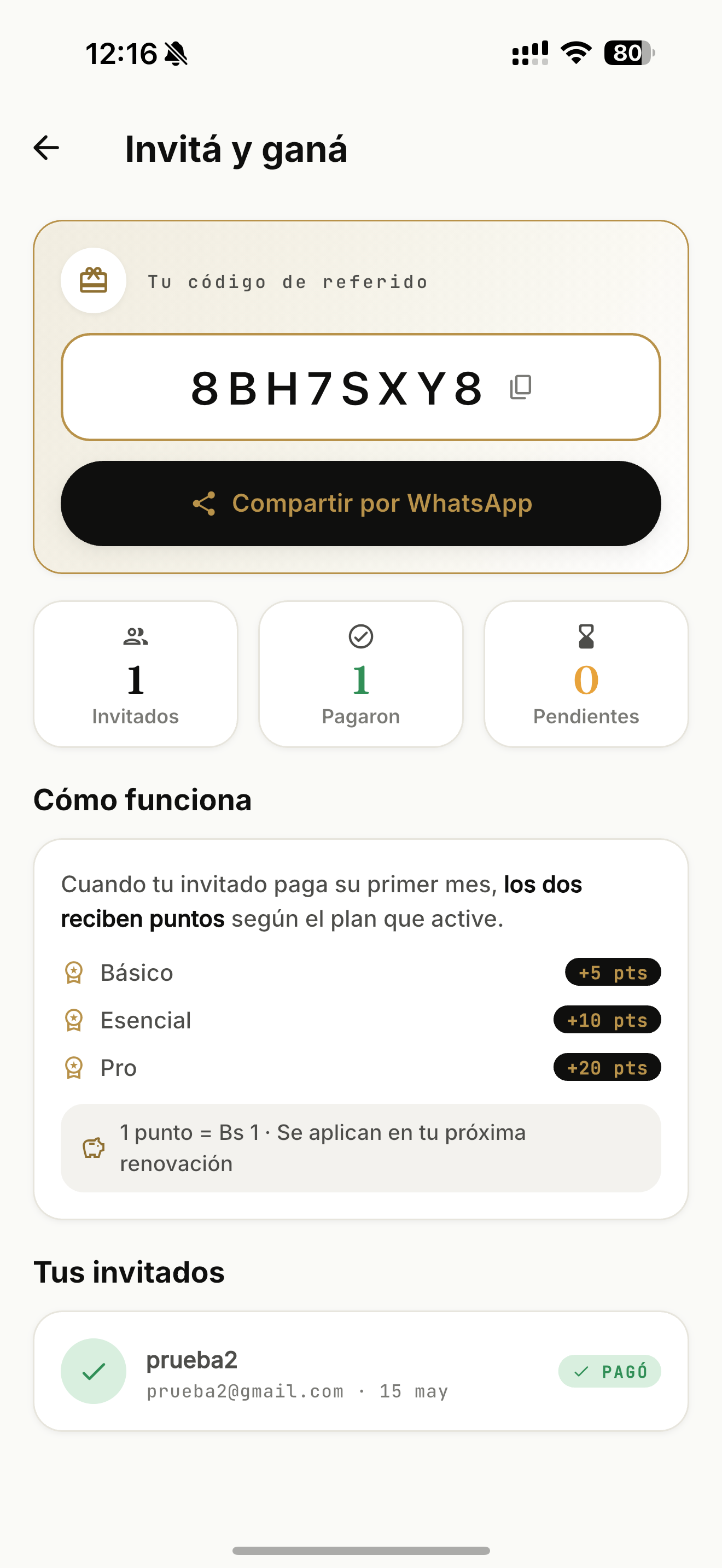
Invite and earn screen with referral code and share button
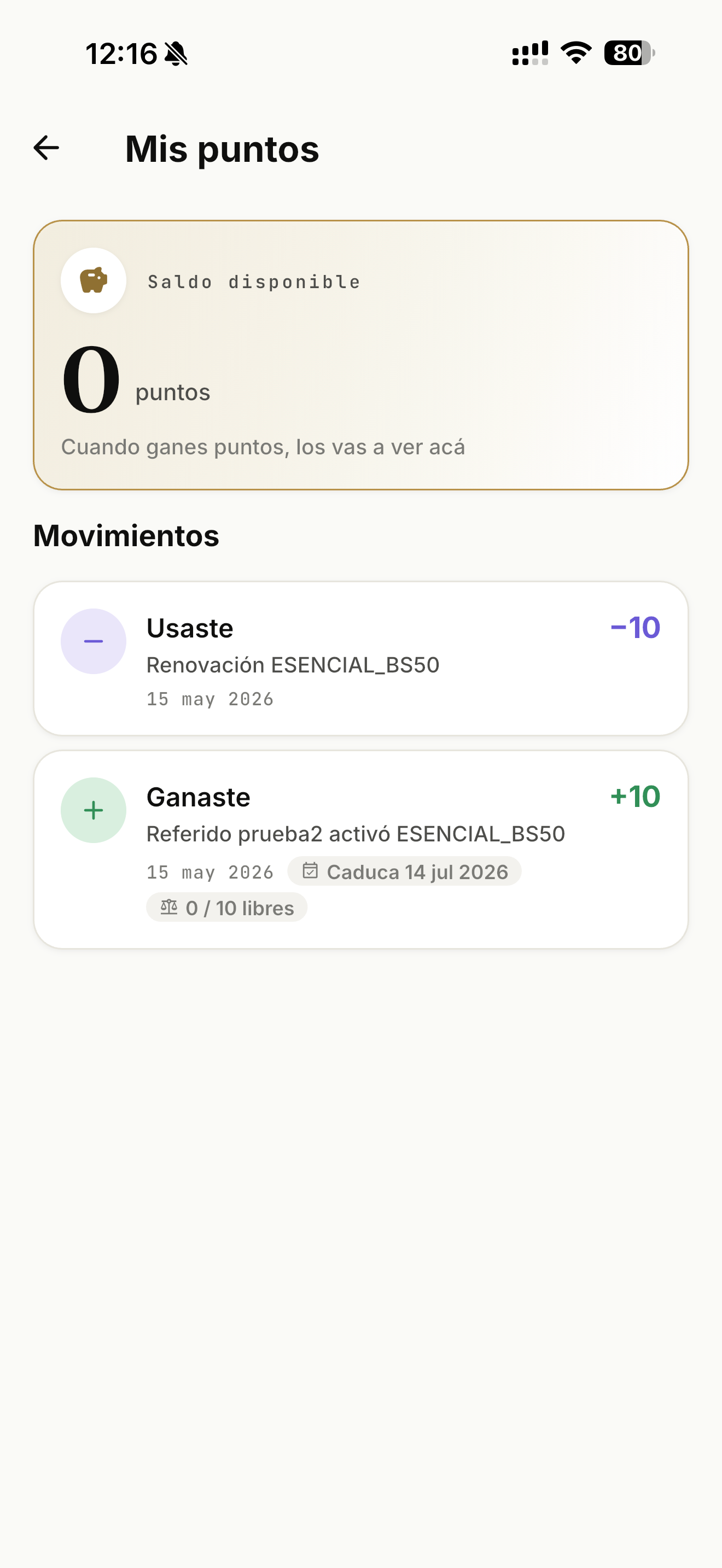
My points screen with available balance and movements
  1. 1

    Go to Settings → Points program → Invite and earn

    You'll see your unique referral code (e.g. 8BH7SXY8) and a "Share via WhatsApp" button prefilled with your link.

  2. 2

    Share via WhatsApp or copy the code

    When your invitee registers with your code and activates a plan, both receive points. Track it at the top of the same screen: Invited / Paid / Pending.

  3. 3

    Points vary by plan they activate

    · Basic plan → **+5 pts** · Essential plan → **+10 pts** · Pro plan → **+20 pts** Both (you + your referral) receive points at the same time.

  4. 4

    Check your balance in "My points"

    You'll see available balance and all movements: "Earned +10 — Referral [name] activated ESSENTIAL_BS50" and "Used −10 — Renewal ESSENTIAL_BS50". Points apply automatically to your next renewal.

    Points expire ~60 days from earning. If you have balance, use it before — InmoPro applies it on your next charge.
10 · SUPPORT

How to get help if you get stuck

Direct in-app ticket support plus WhatsApp backup. Questions and bugs answered within 24 hours.

  1. 1

    In-app support

    Settings > Support > Open a ticket. Attach screenshot if you want.

  2. 2

    Direct WhatsApp

    For urgent issues: +591 77793187. We attend in Bolivia business hours.

  3. 3

    Bug reports

    If something doesn't work, send via ticket with: what you did, what you expected, what happened. We fix in next updates.

Ready to use InmoPro for real?

Download the app and activate your Essential plan to get everything you saw in this tutorial.